Picture this: it’s the end of the month, and you’re buried in spreadsheets. You’re manually exporting data from Google Analytics, cross-referencing it with Google Search Console, and trying to paste it all into a PowerPoint template that never quite looks right.
After hours of work, you send it off, only to get a one-line reply from your client: ‘Looks good, thanks.’
They don’t see the hours you invested. More importantly, they can’t see the incredible story of growth your SEO efforts are creating. The numbers are there, but the narrative is lost in a sea of static data.
If this sounds familiar, you’re not alone. According to a 2023 report by Databox, 47% of agencies spend over five hours per client per month on reporting alone. That’s a massive time sink—time that could be spent on strategy, client communication, or winning new business.
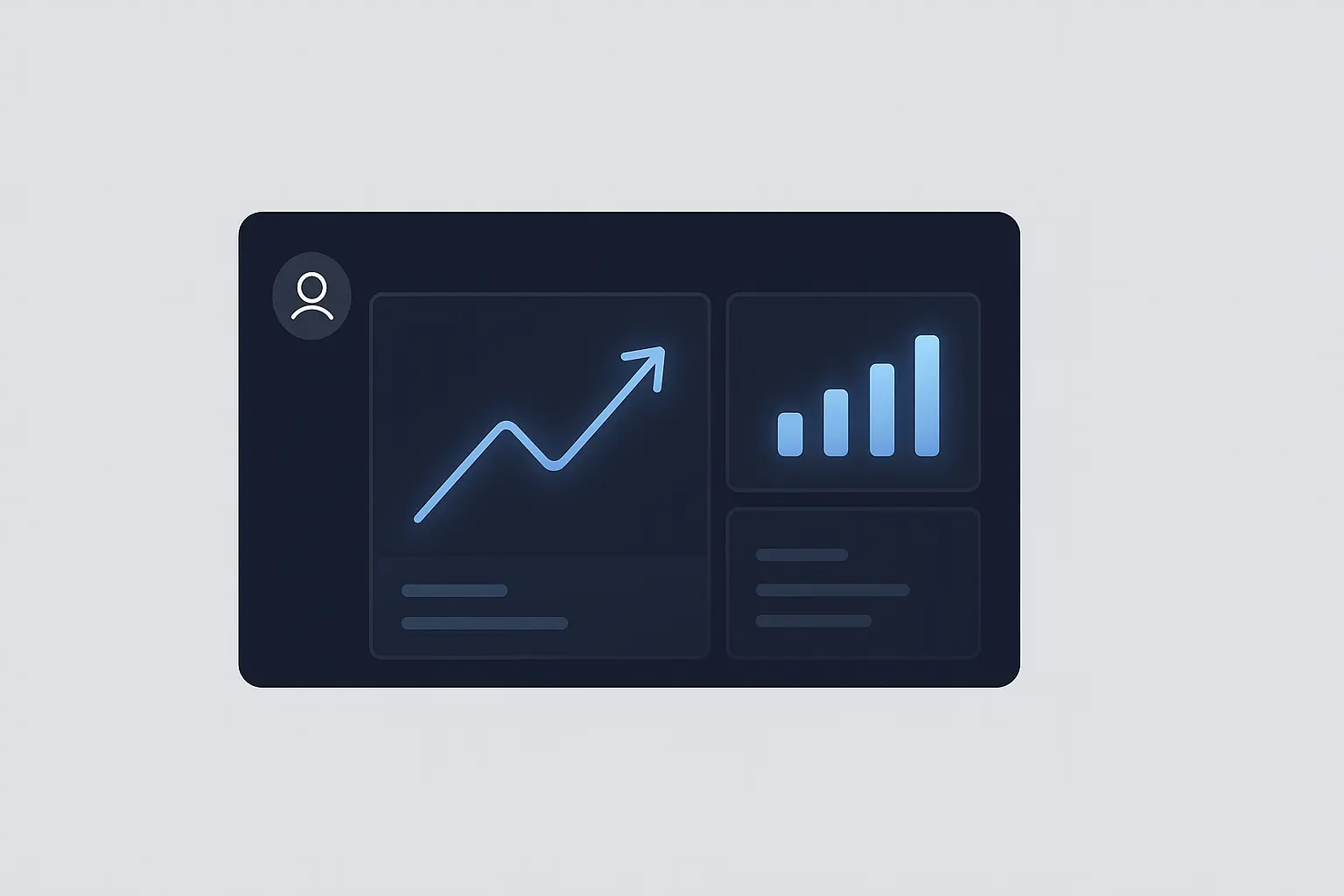
The solution isn’t to work harder; it’s to work smarter. It’s time to graduate from manual spreadsheets to an automated, interactive, and beautifully branded SEO ROI dashboard in Looker Studio. This guide will walk you through exactly how to build one, step by step.
Why a White-Label Dashboard is a Game-Changer for Your Agency
Before we dive into the ‘how,’ let’s talk about the ‘why.’ Moving your reporting to a dynamic dashboard isn’t just about saving time; it’s a strategic move that elevates your entire service delivery.
Reinforce Your Brand:
A white-label dashboard puts your agency’s logo and colors front and center. Every time your client checks their performance, they’re reminded of the value you provide. A Nielsen study found that brands with strong visual identities are 20% more likely to be remembered. Your reporting is a critical brand touchpoint—make it count.
Tell a Compelling Story with Data:
Static reports show what happened. Interactive dashboards let clients explore why it happened. They can filter by date, drill down into specific channels, and see trends develop over time. This transforms reporting from a passive update into an engaging conversation.
Connect SEO to Business Goals:
Vanity metrics like keyword rankings are interesting, but clients care about revenue, leads, and growth. A well-designed dashboard visually connects top-of-funnel activities (like increased organic traffic) to bottom-of-funnel results (like form submissions or sales). And that connection is crucial: HubSpot data shows that businesses prioritizing marketing analytics are 3x more likely to see a significant increase in ROI.
Automate and Scale:
Once built, your dashboard automatically updates with fresh data. You can create a master template and quickly duplicate and customize it for new clients, allowing you to scale your agency without drowning in administrative work.
The Essential Ingredients: What You’ll Need
Getting started is surprisingly straightforward, and the best part is that the core tools are free.
- A Google Account: This is your key to the entire Google ecosystem.
- Looker Studio (formerly Google Data Studio): Google’s powerful and free data visualization tool.
- Your Data Sources: At a minimum, you’ll need access to your client’s Google Analytics 4 (GA4) and Google Search Console (GSC) properties.
- Your Agency Branding: Have your logo (in PNG format) and brand hex codes ready.
Building Your White-Label SEO Dashboard: A Step-by-Step Guide
Ready to build? Let’s walk through the process of creating a professional dashboard that will impress your clients and save you hours every month.
Step 1: Start with a Template (The Smart Shortcut)
While you can build a report from a blank canvas, there’s no need to reinvent the wheel. Looker Studio has a gallery full of pre-built templates that make for a fantastic starting point.
Go to the Looker Studio Report Gallery and search for a GA4 or Search Console report with a layout you like. Find one that is clean and includes some of the core charts you know you’ll need.
Once you’ve found a template, open it and click the ‘Use my own data’ button or the three-dots menu and select ‘Make a copy.’ This will create an editable version of the report in your own Looker Studio account.
Step 2: Connecting Your Data Sources
This is where you bring your client’s data to life. Looker Studio will prompt you to choose a new data source for the report.
-
Select Google Analytics: Choose the Google Analytics connector. You’ll then select the Account, Property, and Data Stream for your client’s GA4 setup.
-
Add Google Search Console: Next, go to Resource > Manage added data sources and click ‘ADD A DATA SOURCE.’ Search for and select the Google Search Console connector. Choose your client’s property and select the ‘Site Impression’ table.
-
Blend Your Data (Optional but Recommended): For a unified view, you can blend GA4 and GSC data. This allows you to show metrics like clicks (from GSC) and conversions (from GA4) on the same chart.
It’s crucial to understand what each source measures. GSC tracks how your site performs in Google Search (clicks, impressions, position), while GA4 tracks what users do once they arrive on your site (sessions, engagement, conversions). If you’re still getting a handle on the nuances between them, our guide on Google Search Console vs. GA4 breaks it down.

Step 3: Customizing with Your Agency’s Brand
This is where the magic happens. In just a few clicks, you can transform a generic template into your agency’s proprietary reporting tool.
In the toolbar, click on ‘Theme and layout.’ Here you can:
- Upload Your Logo: Add your agency’s logo to the report header.
- Customize Colors: Input your brand’s hex codes to change the colors of charts, text, and backgrounds.
- Set Fonts: Choose fonts that align with your agency’s branding.
This simple step instantly makes the report feel premium and reinforces your brand’s professionalism.
Step 4: Selecting and Visualizing Key SEO Metrics
A great dashboard focuses on clarity, not complexity. Instead of overwhelming clients with every metric available, focus on the KPIs that directly relate to their business objectives.
Organize your dashboard into logical sections:
- Performance Overview (The ‘At a Glance’ Section): Use scorecards at the top for key metrics like Organic Users, Organic Sessions, and Total Conversions.
- Search Visibility: A time-series chart is perfect for showing Clicks, Impressions, and Average Position from Google Search Console and illustrating how your visibility in search results is trending.
- Top Performing Content: A simple table can show your top organic landing pages alongside their sessions and conversions. This highlights which content is driving real results.
- Conversion Goals: Dedicate a section to the most important business outcomes. This could be a scorecard for ‘Leads Generated’ or a bar chart showing ‘eCommerce Purchases by Day.’
Choosing the right KPIs is foundational to any successful campaign, which is why our white-label SEO services always start with defining what success looks like for your clients.
Step 5: Adding Context and Insights
Data without interpretation is just noise. This is your opportunity to add the human expertise that automation can’t replace. Your dashboard tells the ‘what’; your commentary explains the ‘so what.’
Use the ‘Text’ tool in Looker Studio to add a commentary box to your report. Each month, use this space for a few bullet points that:
- Highlight key wins: ‘Organic traffic from our blog content increased by 35% this month, leading to 12 new demo requests.’
- Explain trends: ‘We saw a seasonal dip in traffic, which is typical for the industry, but our conversion rate remained 15% above the previous year’s.’
- Outline next steps: ‘Next month, we will focus on optimizing our top five landing pages to further improve conversion rates.’
This commentary transforms the report from a data dump into a strategic document that demonstrates your value and builds client trust.
Step 6: Sharing and Automating Your Report
With your dashboard complete, it’s time to share it. Go to the ‘Share’ button in the top right. You have a few options:
- Invite people: Give your clients direct view access.
- Get report link: Send a direct link they can bookmark.
- Schedule email delivery: This is the ultimate time-saver. You can set up the report to be automatically emailed as a PDF to your client on the first day of every month. Set it once and forget it.
Common Pitfalls to Avoid
As you build your first few dashboards, watch out for these common mistakes:
- Data Overload: Resist the urge to include every possible metric. A cluttered dashboard is an ignored dashboard. Focus on the few key metrics that tell the most important story.
- Forgetting the Narrative: Don’t just send the link. Use your monthly commentary to guide your client through the data, explaining what it means for their business.
- A ‘One-Size-Fits-All’ Approach: An e-commerce client cares about revenue and transactions. A B2B client cares about leads and form fills. Tailor your dashboards to reflect the unique goals of each client.
Frequently Asked Questions (FAQ)
Is Looker Studio really free?
Yes, Looker Studio is completely free to use. You can connect to Google-owned data sources like Google Analytics, Search Console, and Google Sheets at no cost. Some third-party connectors to other platforms (like social media or CRM tools) may require a subscription fee.
How do I track specific goals like form submissions?
You first need to configure those actions as ‘conversion events’ within Google Analytics 4. Once GA4 is tracking them, you can easily pull that data into your Looker Studio dashboard as a key metric.
Can I pull in data from platforms other than Google?
Absolutely. Looker Studio has a gallery of partner connectors that allow you to pull in data from hundreds of sources, including social media platforms, email marketing tools, and advertising networks. This allows you to create a true omnichannel dashboard.
How often should I send this report?
A monthly cadence is standard for most SEO retainers. The ‘schedule email delivery’ feature makes this easy to automate. For clients on a more aggressive growth plan, bi-weekly check-ins might be appropriate.
Taking Your Agency’s Reporting to the Next Level
Congratulations. You now have the blueprint for building a professional, automated, white-label reporting system. It’s a system that saves time, impresses clients, and proves the immense value of your work.
Building your own dashboard is a fantastic first step toward scaling your agency’s operations. It replaces manual, low-value tasks with efficient, automated workflows. As you grow, you might find that managing data sources and customizing reports for every client becomes its own full-time job. That’s where having an agency SEO partner can transform your workflow, handling the execution and reporting so you can focus entirely on strategy and client success.
For now, embrace the power of automated reporting. Your clients—and your schedule—will thank you for it.