
You have it in your hands: a brilliant, data-driven content plan generated by a powerful AI. It’s packed with high-intent keywords, competitor-beating angles, and a clear path to dominating the SERPs for your client. It feels like the key to unlocking serious growth.
Then, Monday morning hits.
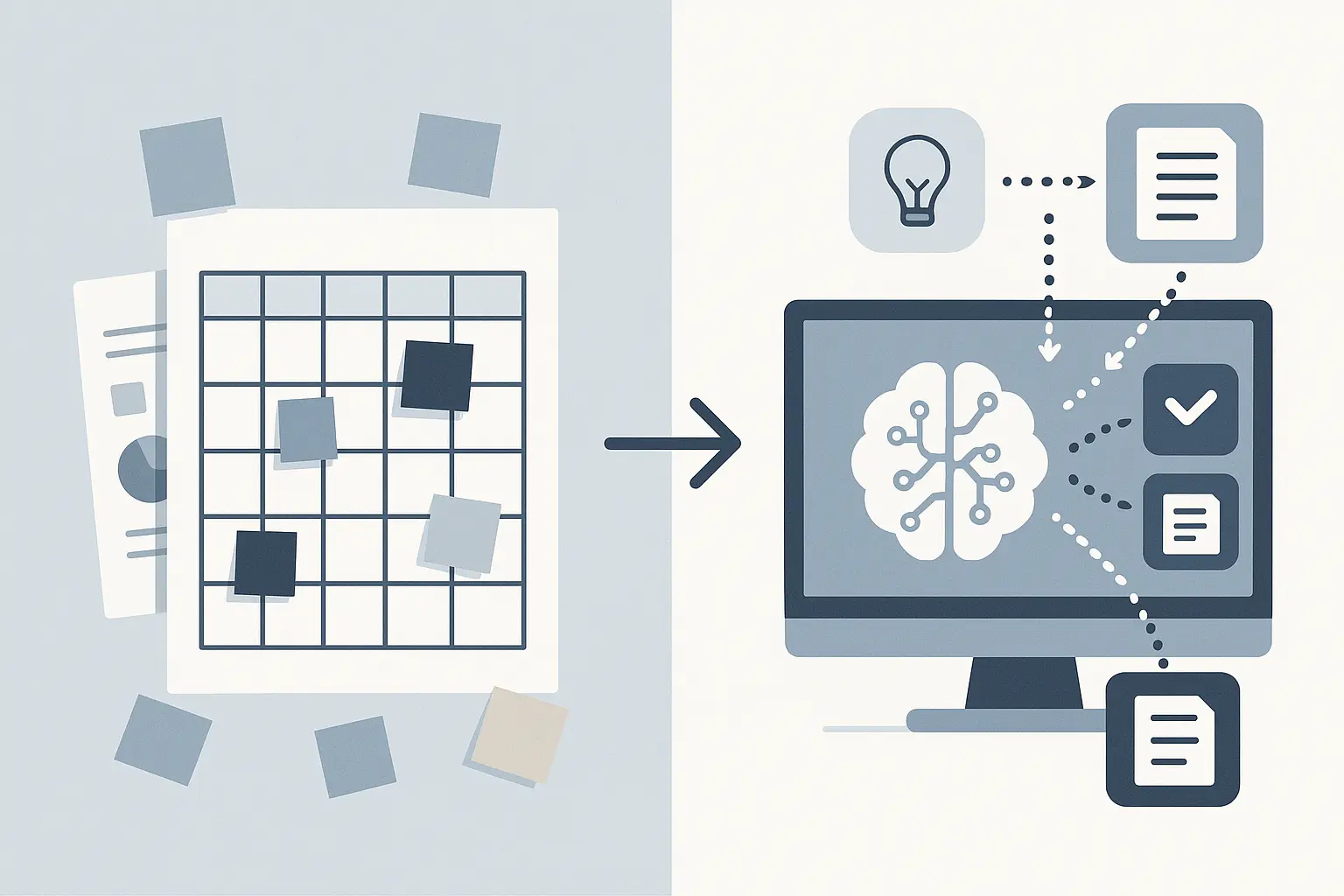
The plan, likely living in a spreadsheet, sits in a shared drive. Your writers, editors, and designers are all working out of your project management tool—Asana, ClickUp, or Monday.com. Suddenly, that brilliant plan feels less like a key and more like a locked door.
How do you transfer that strategy from a spreadsheet into your team’s daily workflow without endless, soul-crushing copy-pasting? That disconnect is more than an annoyance; it’s where content strategies go to die.
The Real Problem: The Chasm Between Strategy and Execution
In the agency world, we live and breathe project management software—and for good reason. A staggering 94% of organizations rely on these tools to organize their workflows. We use them because they provide a single source of truth, create accountability, and give us visibility into progress.
Yet, content plans often live on an island, developed in one place (spreadsheets, docs) and executed in another (your PM tool). This creates a chasm where critical details get lost:
- Manual Entry Errors: A single copy-paste mistake can assign the wrong keyword to an article.
- Lack of Visibility: Who’s working on the “Beginner’s Guide to SaaS Metrics” blog? Is the brief ready? When is the first draft due? A spreadsheet can’t answer these questions in real time.
- Inefficient Handoffs: The writer finishes the draft, but the editor isn’t notified. The post sits idle, delaying the entire publishing schedule.
- Scalability Ceiling: Manually managing one client’s four-posts-a-month calendar is tedious. Trying to do it for five clients is a recipe for burnout and missed deadlines.
The solution isn’t a more complex spreadsheet. It’s building a bridge that lets your AI-generated content plan flow directly into the project management system your team already lives in.
A Universal Framework for Seamless Integration
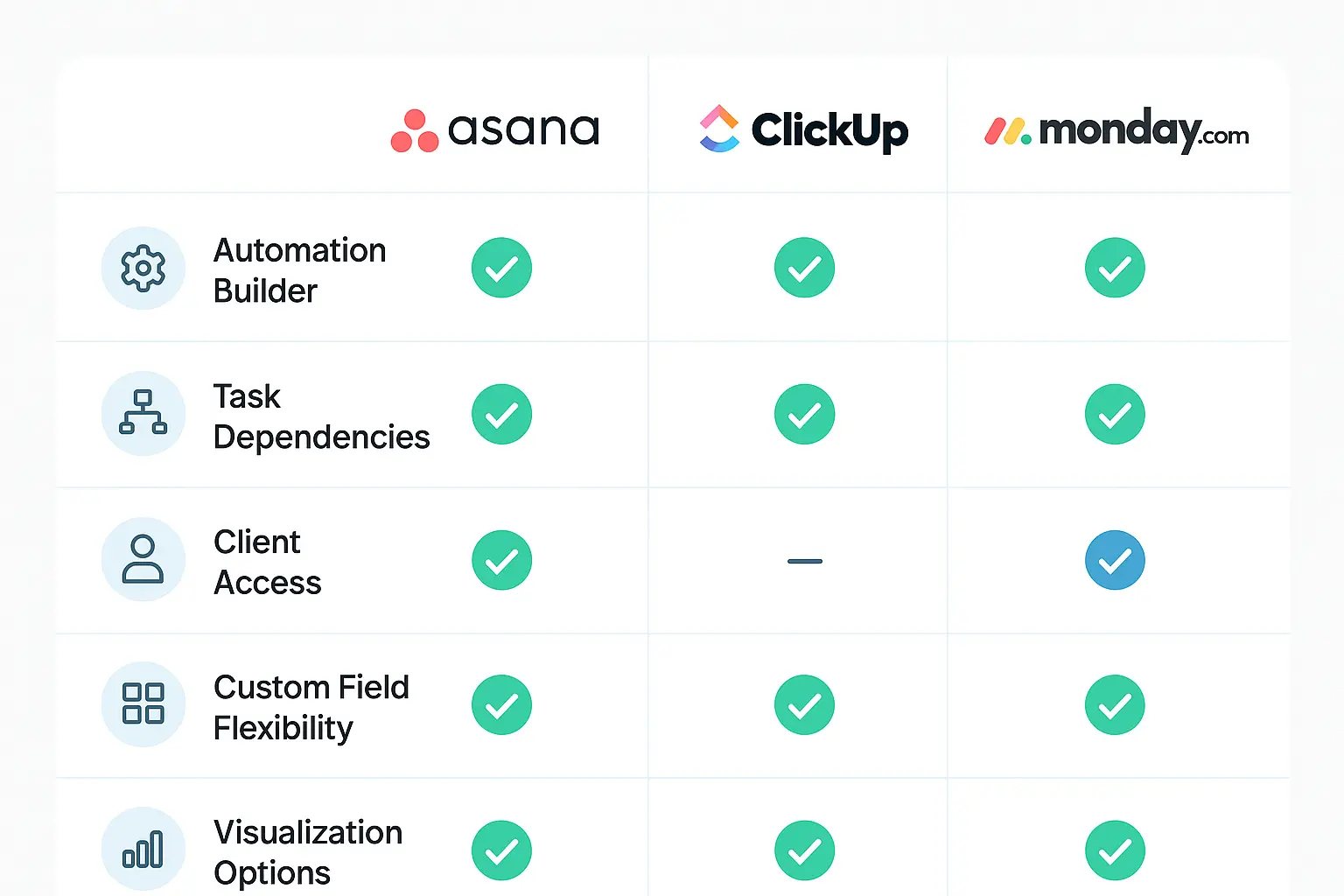
Whether you’re a fan of Asana’s lists, ClickUp’s flexibility, or Monday’s visual boards, the principles for integrating a content calendar are the same. It’s about creating a repeatable system—a content production machine—that runs smoothly in the background.
Here’s a simple, three-step framework.
Step 1: Define Your Core Content Workflow
Before you touch any software, map out your content stages on a whiteboard. Most agencies follow a similar path:
- Briefing: The content brief is created and finalized.
- Writing: The first draft is written.
- Editing: The draft is reviewed for grammar, style, and tone.
- SEO Review: The content is optimized for target keywords and search intent.
- Design: Graphics, screenshots, and other visuals are created.
- Client Approval: The final piece is sent to the client for review (if applicable).
- Publishing: The content is uploaded to the CMS and published.
- Promotion: The published piece is shared on social media, in newsletters, etc.
Step 2: Map Workflow Stages to Your PM Tool
Next, translate those stages into the language of your PM tool by creating custom statuses or sections. For example, your workflow stages become statuses like ‘Brief Ready’, ‘Drafting’, ‘In Review’, and ‘Ready to Publish’.
Step 3: Build Your “Master Content Task” Template
This is the game-changer. Instead of creating a new task from scratch for every blog post, you’ll build a master template that contains all the necessary information and subtasks. Every time a new piece of content from your AI plan is ready to be worked on, you simply duplicate this template.
A robust master template should include:
- Task Title: [Blog Post Title]
- Assignee(s): Writer, Editor, Designer
- Due Date: Final publishing date
- Description/Attachments: This is where you link or paste the full AI-generated content brief.
Custom Fields:
- Primary Keyword: The main target keyword.
- Content Type: (e.g., Blog Post, Landing Page, Case Study).
- Status: (e.g., Briefing, Writing, Editing).
Subtasks: Create a subtask for each stage of your workflow (e.g., “Write first draft,” “Design header image,” “Schedule social promotion”). Assign due dates and owners to each.
With this system, your AI-powered content calendar stops being just a list of ideas. It becomes a series of pre-built, actionable project plans, ready to be activated.
Putting It Into Practice: Tool-Specific Setups
While the framework is universal, the execution varies slightly by tool. Here’s how to apply it in the big three.
Integrating with Asana
Asana is perfect for this with its clean interface and powerful templates.
- Create a New Project: Call it “Client X Content Calendar.” Choose the Board or List view.
- Use Sections/Columns for Stages: If using Board view, make each column a stage in your workflow (e.g., ‘To Do’, ‘Writing’, ‘Editing’, ‘Published’).
- Create Custom Fields: Go to “Customize” and add fields for “Primary Keyword” and “Content Type.”
- Build Your Template Task: Create a new task and name it “[TEMPLATE] Blog Post.” Fill out all the custom fields, add your checklist of subtasks, and write instructions in the description.
- Save as a Template: Click the “…” menu on the task and convert it into a permanent template for the project. Now, your team can add a new post to the workflow in two clicks.
Integrating with ClickUp
ClickUp’s flexibility shines here.
- Use Statuses for Your Workflow: In your chosen Space or Folder, customize the statuses to match your content stages. You can color-code them for at-a-glance clarity.
- Leverage Custom Fields: ClickUp offers a wide variety of custom fields. Add a ‘Text’ field for the “Primary Keyword” and a ‘URL’ field to link directly to the Google Doc brief.
- Use Task Templates & Docs: Create your master task template with all subtasks and custom fields. You can also embed the entire content brief directly into the task using a ClickUp Doc, keeping everything in one place.

Integrating with Monday.com
Monday’s visual-first approach makes it great for seeing the big picture.
- Create a New Board: Start with a blank board or use a content marketing template.
- Use Groups for Categories: You could create groups for each month (‘October Content’, ‘November Content’) or by content type (‘Blog Posts’, ‘Case Studies’).
- Customize Status Columns: Your main “Status” column should reflect your workflow stages. Add other columns for “Writer,” “Editor,” “Due Date,” and “Primary Keyword.”
- Use Subitems: Create your main task (the blog post) and then add subitems for each step in the process. This allows you to track micro-progress on each content piece.
The White-Label Advantage: Keeping Your Agency in Control
Setting up this system does more than just make your team more efficient. For agencies, it’s about ownership and control. When you partner with an outside resource for tasks like content planning, this internal workflow is what keeps the process firmly in your hands.
The AI-generated plan becomes the fuel, but your agency remains the engine. You control the timeline, the assignments, and the client communication. This structured process ensures that even when you use SEO outsourcing for agencies, the final deliverables and project management stay seamlessly integrated under your brand.
This operational excellence is what transforms a good agency into a great one. You’re not just delivering a list of keywords and a few blog posts; you’re managing a sophisticated, scalable content machine. It’s the kind of structure that lets you confidently offer white-label SEO services without clients ever knowing you have an agency SEO partner working behind the scenes. You own the relationship because you own the process.
Frequently Asked Questions (FAQ)
How long does it take to set up this system?
The initial setup for one project or client might take 60–90 minutes. You’ll be defining your workflow, creating custom fields, and building your first master template. But that one-time investment pays off quickly, saving your team hours every week.
Can I automate the creation of tasks from the spreadsheet?
Yes. For more advanced teams, tools like Zapier or Make.com can create a new task in your PM tool whenever a new row is added to your Google Sheets content calendar. This can fully automate the bridge between the plan and the project.
What if my agency uses a different PM tool, like Trello or Notion?
The same principles apply. Trello uses Lists and Cards, while Notion uses Databases and Properties. The key is to identify your tool’s features for stages (Lists/Statuses), details (Custom Fields/Properties), and repeatability (Card Templates/Database Templates).
How does this help with reporting to clients?
Having all your content tasks in one place makes reporting effortless. You can filter by “Published” status to quickly show a client everything that went live in a given month. Most tools also allow you to create public-facing dashboards or share read-only views, offering clients transparent, real-time access to your progress.
From Plan to Published: Your Next Step
An AI-generated content plan gives you the “what.” A well-integrated workflow provides the “how.”
By bridging the gap between strategy and execution, you eliminate bottlenecks, empower your team with clarity, and build a scalable system that can handle growth. You transform a static spreadsheet into a dynamic, living content calendar that drives real results for your clients.
Take 30 minutes this week to look at your current process. Where are the friction points? Where do things get lost in translation? The path to a smoother, more profitable content operation starts with that first step.